
PRINT / COMPARE / TROUBLESHOOT
Check your print scale
Engineering preview: usable draft patterns, not a physically validated release. See validation limits.
Actual-size squares
Choose Actual size / 100%, the matching paper size, and turn off headers and footers. Do not select Fit to page or borderless enlargement.
Mobile: open the PDF, then use the viewer’s Share / Print command. A download link opens a file; it does not confirm the file was saved.
Pattern details
AS-01 · 1 PDF pageDraft pattern · physical validation pending.
Estimated coverage: see the asset manifest. Estimates describe artwork area, not ink volume.
Pattern preview
Read your result
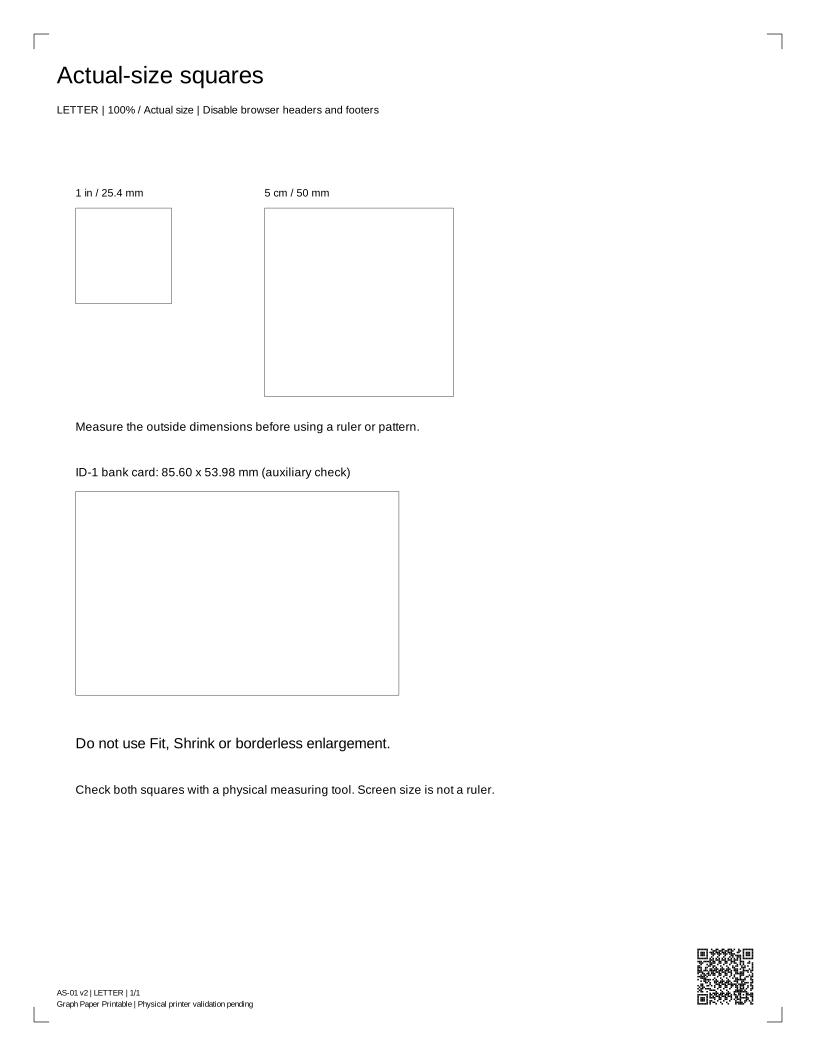
Measure the 25.4 mm and 50 mm squares with a physical ruler. Print both segments at 100%, then overlay the shared 6-inch or 15-cm marks. Check each segment, the join and the full length. Screen size is not actual print size. Hardware accuracy has not been certified.
Check size, then join the segments
Compare a standard ID-1 bank card with the 85.60 × 53.98 mm outline on the actual-size PDF. Keep your card on your desk; no photo or upload is needed. ID-1 size reference. This is an auxiliary check; measure the squares and full ruler with a known physical ruler.
Overlap the matching marks without stretching the paper. Check each segment, the seam and total length before use.
Print-setting screenshot placeholders
Real captures pending: Chrome / Windows, Edge / Windows, Safari / macOS, Acrobat, iOS and Android. Each capture must include application and OS versions, date, selected paper and Actual size / 100%. These placeholders do not certify those environments.
Check the print dialog
- Open the PDF in a viewer that exposes a scale setting.
- Match A4 or Letter to the loaded paper.
- Select Actual size or 100%. Disable Fit, Shrink and borderless enlargement.
- In browser dialogs turn off headers and footers. Check the preview for clipped corners.
- On a mobile viewer without explicit scale control, move the same PDF to a desktop viewer. Do not assume “fit” is 100%.
Versioned Chrome, Edge, Safari, Acrobat, macOS and mobile setting screenshots have not yet been collected.
Before you print again
Does requesting a print mean it printed?
No. The browser can request a dialog, but cannot tell whether you cancelled, sent the job or received paper. Check the preview and the physical result.
Why are there two paper sizes?
Each PDF has a native Letter or A4 page box. Choose the same size in the printer dialog, use Actual size / 100%, and disable headers, footers and Fit to page.
Can this sheet diagnose my printer?
It is a comparison aid. A generic sheet cannot identify a failed part, measure ink remaining, certify colors or replace the manufacturer's model-specific checks.