
PRINT / COMPARE / TROUBLESHOOT
Keep ink from drying
Engineering preview: usable draft patterns, not a physically validated release. See validation limits.
Use a model-appropriate check without treating a generic schedule as a guarantee. Toner and ink need different care.
Find an appropriate maintenance approach
Three inputs, no account. Find an official check and a suitable test sheet. Follow your model’s manual for timing.
Maintenance sheet
Choose Actual size / 100%, the matching paper size, and turn off headers and footers. Do not select Fit to page or borderless enlargement.
Mobile: open the PDF, then use the viewer’s Share / Print command. A download link opens a file; it does not confirm the file was saved.
Pattern details
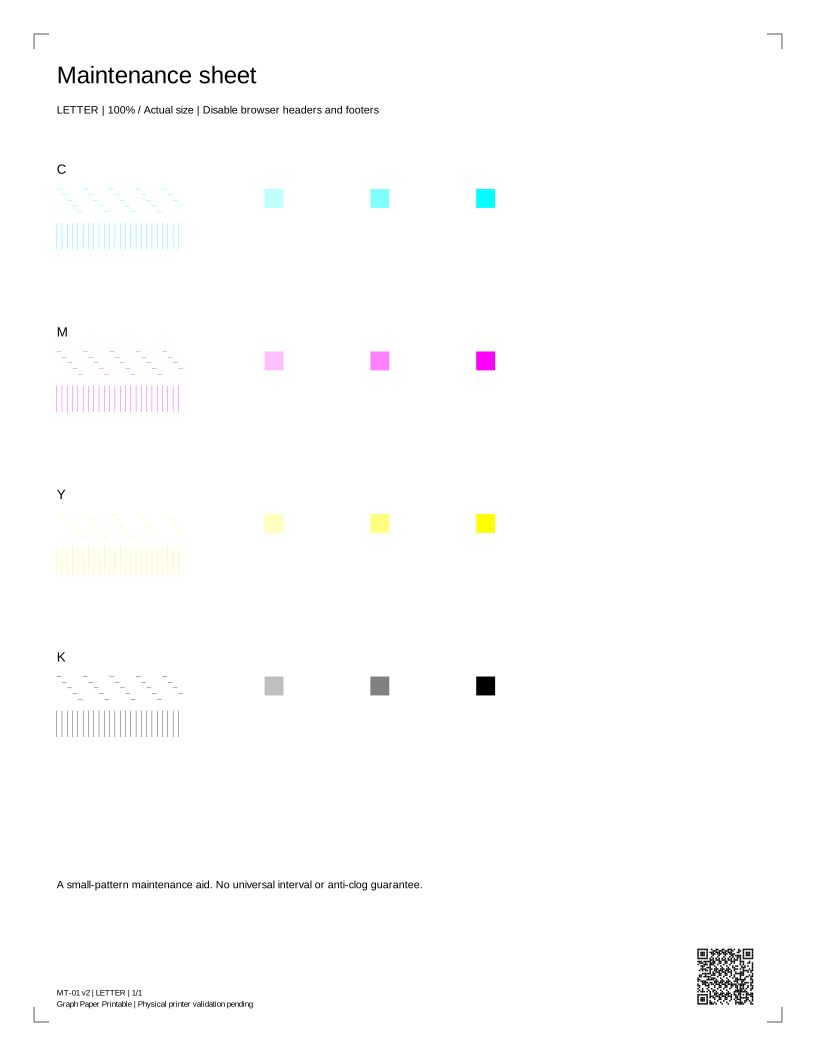
MT-01 · 1 PDF pageDraft pattern · physical validation pending.
Estimated coverage: see the asset manifest. Estimates describe artwork area, not ink volume.
Pattern preview
Read your result
Look for complete small color patches and continuous stepped lines. If quality changes, use the built-in nozzle check rather than repeatedly printing maintenance sheets. No universal interval or anti-clog guarantee is implied.
Four-week grid
Choose Actual size / 100%, the matching paper size, and turn off headers and footers. The complete PDF has 4 pages. Print only this week’s page, not all four.
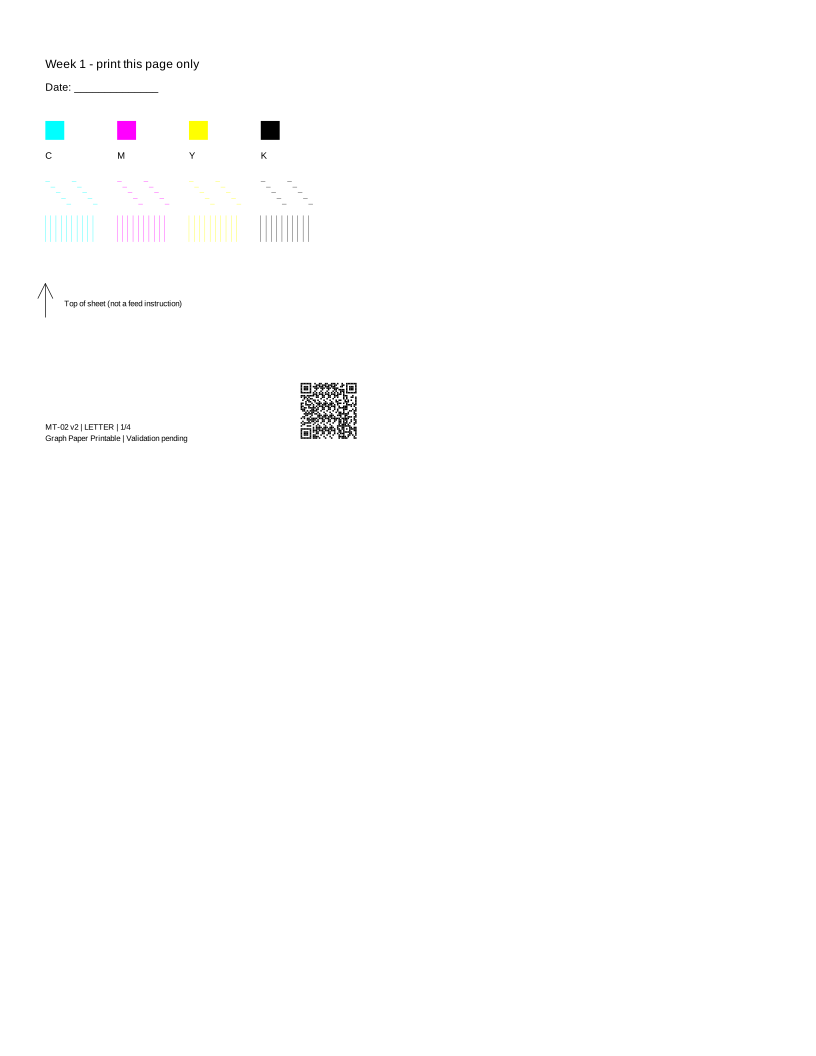
Keep the same sheet orientation. The arrow marks the top of the sheet, not the feed direction. Confirm re-feeding is permitted in your manual; otherwise use the single maintenance sheet below.
Mobile: open the PDF, then use the viewer’s Share / Print command. A download link opens a file; it does not confirm the file was saved.
Pattern details
MT-02 · 4 PDF pagesDraft pattern · physical validation pending.
Estimated coverage: see the asset manifest. Estimates describe artwork area, not ink volume.
Pattern preview
Read your result
Only the selected quadrant should receive marks. Use the same paper again only if your model permits it and the sheet is dry, flat and undamaged. A print dialog closing never advances the selected week.
Photo-printer maintenance pattern
Choose Actual size / 100%, the matching paper size, and turn off headers and footers. Do not select Fit to page or borderless enlargement.
Mobile: open the PDF, then use the viewer’s Share / Print command. A download link opens a file; it does not confirm the file was saved.
Pattern details
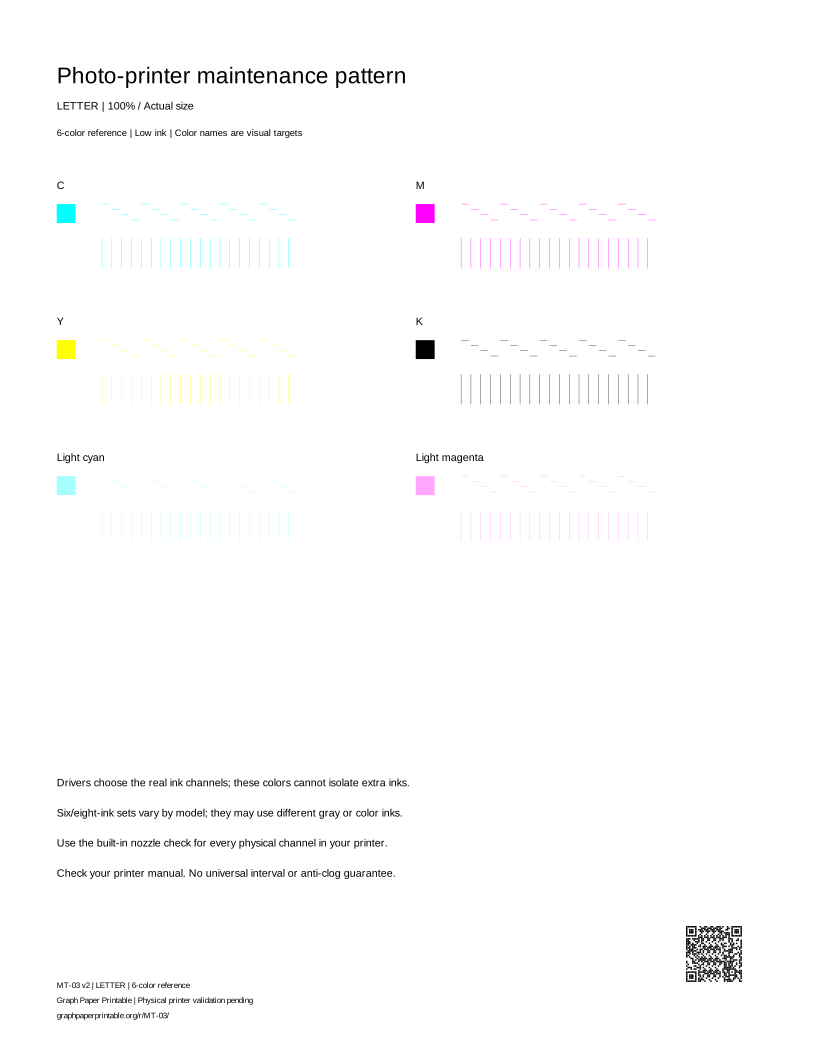
MT-03 · 1 PDF pageDraft pattern · physical validation pending.
Estimated coverage: see the asset manifest. Estimates describe artwork area, not ink volume.
Pattern preview
Read your result
The six/eight reference patches are composite colors produced by a driver, not isolated light-ink channels. Use the photo printer’s built-in all-channel check for actual nozzle assessment.
Before a holiday or long storage
Follow the model’s shutdown and storage instructions. Printing a maintenance sheet cannot guarantee that ink will not dry. A six-or-more-ink photo printer needs its built-in all-channel check.
Start with your printer’s built-in check
These procedures apply only to the listed models, not every printer from a brand. Use your exact model’s manual for cleaning limits and waiting periods.
Epson · ET-2850 / L4260
Load plain paper and extend the output tray. From Home, choose Maintenance, then Nozzle Check, then Start. Compare the result with the pattern in this manual.
Official procedure checked; device test pending · source check 2026-09-23
Canon · TS3500 series
With the printer on, load one sheet of A4 or Letter plain paper in the rear tray. Press Setup until 1 appears on the LCD, then press Black or Color. Wait until printing finishes.
Official procedure checked; device test pending · source check 2026-09-23
Brother · DCP-T520W / T525W / T720DW / T725DW / T820DW / T825DW
Press Menu. Select Maintenance and OK, Improve Quality and OK, then Check Quality and OK. Press Colour Start. Compare the four color blocks with the manual.
Official procedure checked; device test pending · source check 2026-09-23
HP · DeskJet 2700 / 4100 / 4800 series
Use the model-specific Print Quality Report instructions in HP support. The official search excerpt names the HP app and its Print Quality Tools / Printer Reports, but this session could not open the full support article. Verify the current labels in the linked article before proceeding.
Full source access and device test pending; no universal button sequence claimed · source check 2026-09-23
Before you print again
Does requesting a print mean it printed?
No. The browser can request a dialog, but cannot tell whether you cancelled, sent the job or received paper. Check the preview and the physical result.
Why are there two paper sizes?
Each PDF has a native Letter or A4 page box. Choose the same size in the printer dialog, use Actual size / 100%, and disable headers, footers and Fit to page.
Can this sheet diagnose my printer?
It is a comparison aid. A generic sheet cannot identify a failed part, measure ink remaining, certify colors or replace the manufacturer's model-specific checks.